New users tend to ask the same dozen questions about any streaming app, and Aya TV app for Android is no exception. This page collects the questions we hear most — about cost, devices, installation, data, and everyday problems — and answers each one briefly and honestly. Where a question deserves a full guide, the answer points you to it.
Skim the headings for your question, or read through for a fast orientation to how the app works before you install it.
Is Aya TV Free to Use?
The app itself is free to download and use, which is a large part of its appeal compared with subscription platforms. Your real costs are indirect: the internet connection you stream over and, on mobile data, the data itself. Watching on home Wi-Fi keeps the ongoing cost at effectively zero.
Do I need an account? For everyday viewing, no account or sign-up stands between you and the content — install the app and start browsing categories. That simplicity is deliberate and is covered as part of the general overview in our features guide.
Which Devices Can Run It?
Any reasonably modern Android phone or tablet can run the app, and Android TVs and TV boxes are supported for big-screen viewing. Very old devices with little memory may struggle with the highest quality settings but still handle standard playback with the right settings.
Exact expectations by device type — including minimum Android versions and hardware notes — are set out in our device compatibility guide. Can I use it on a computer? Only indirectly, through an Android emulator on Windows or Mac, which works but is rarely worth the effort compared with a phone, tablet, or TV box.
How Do I Install and Update It?
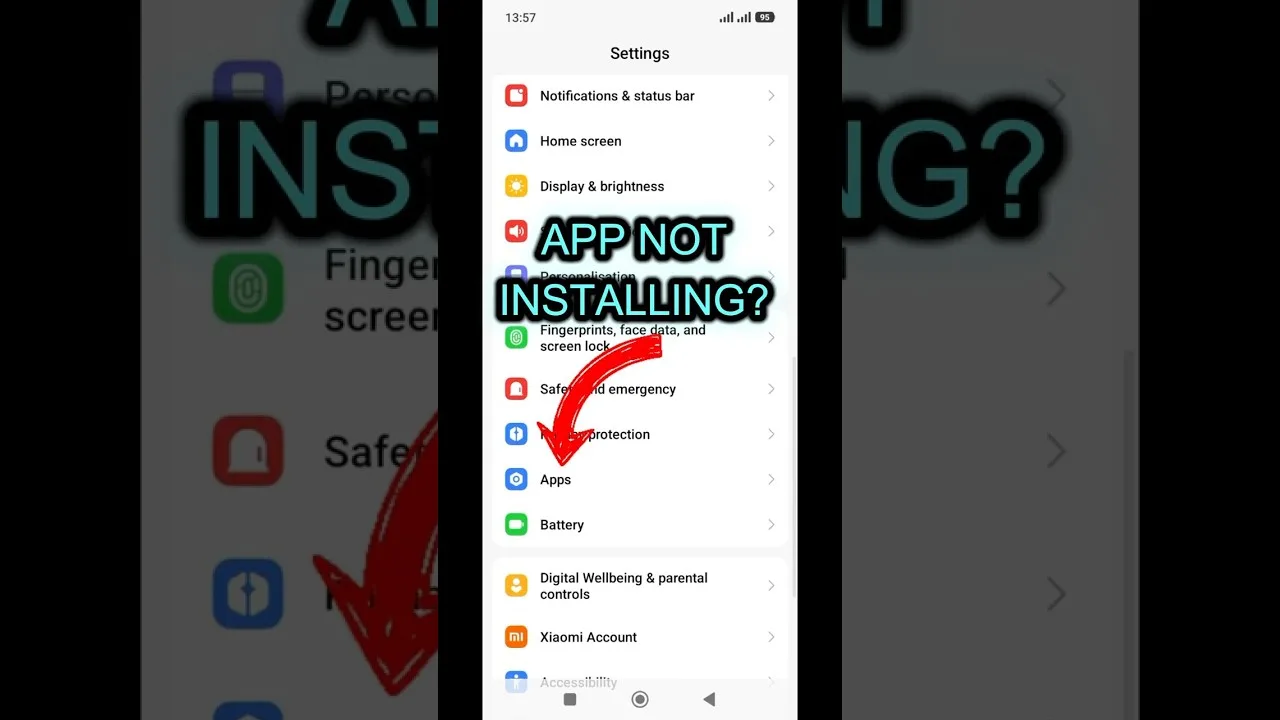
Installation takes a few minutes: download the APK from the download page, allow installation from your browser or file manager when Android asks, and open the app. Updates install over the top of the existing app and keep your settings and favourites.
Why does Android warn me during installation? Because the app comes from outside the Play Store, Android shows a standard caution for all such installs. It is a checkpoint, not an accusation — the full step-by-step, including that prompt, is in our installation guide.
How Much Data and Storage Does It Need?
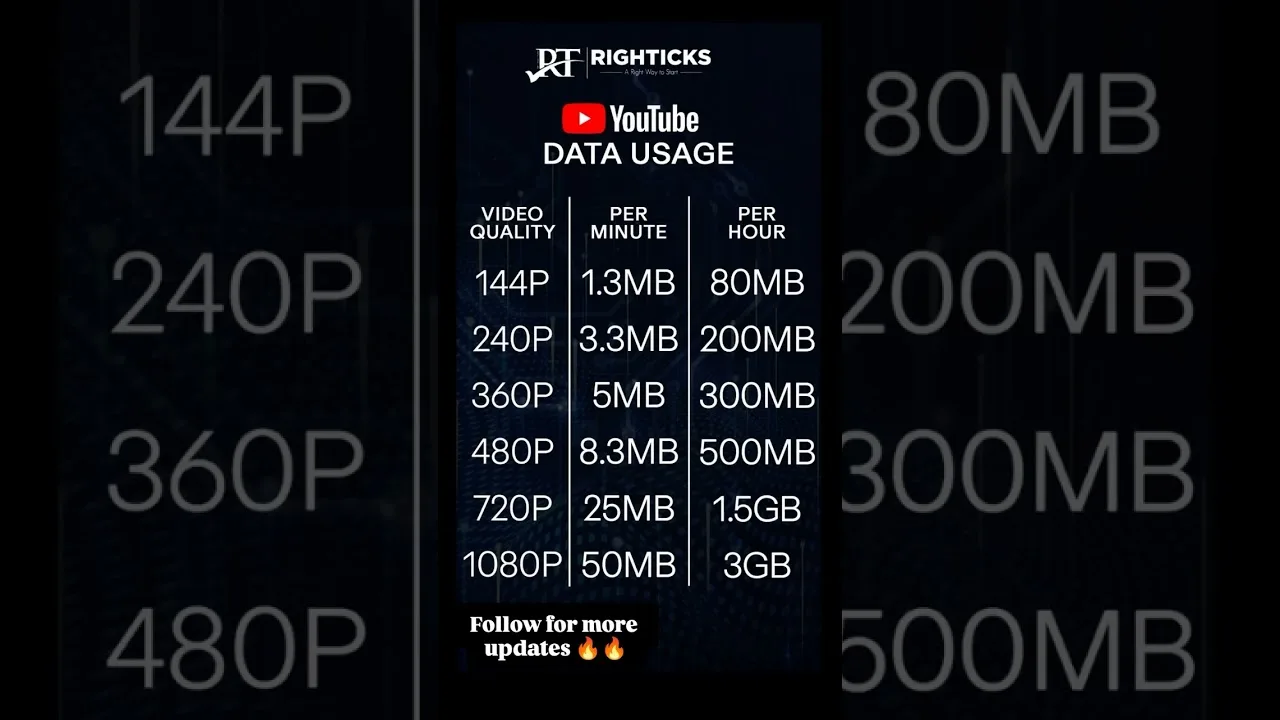
Data use depends on quality: roughly half a gigabyte per hour in standard definition and up to about 3 GB per hour at the highest quality. Storage for the app itself is modest, but its cache grows with use and can be cleared safely at any time from Android's app settings.
Why does playback buffer even on fast internet? Because steadiness matters more than headline speed, and because live sources get busy. Quality matched to your connection, a decent router position, and a phone that is not overloaded fix most cases.
What If Something Goes Wrong?
Most problems have boring causes: an outdated version, a full cache, a weak signal, or a device that needs a restart. Update the app, clear the cache, restart the phone, and test on a strong Wi-Fi connection before assuming anything is seriously wrong.
Subtitles missing? They depend on the stream carrying them — another version of the same title often has the track you need. Channels missing after an update? Restart the app once; lists rebuild on a fresh launch more often than users expect.
Final Thoughts
If your question was not covered here, it is probably answered in depth somewhere in the guides linked above — installation, compatibility, features, and troubleshooting each have their own page. Aya TV rewards a small amount of learning: once the basics are familiar, the app mostly stays out of your way and lets you watch.