Defaults are chosen for an imaginary average phone on an imaginary average connection, and almost nobody owns either. Ten minutes spent tuning Aya TV APK settings to your real device repays you at every session: steadier playback, fewer stalls, and a phone that runs cooler through a match or a film.
Change one group at a time — quality, then player behaviour, then convenience — and watch for a day in between, so every improvement or regression has an obvious cause.
Stream Quality: Match It to Your Connection
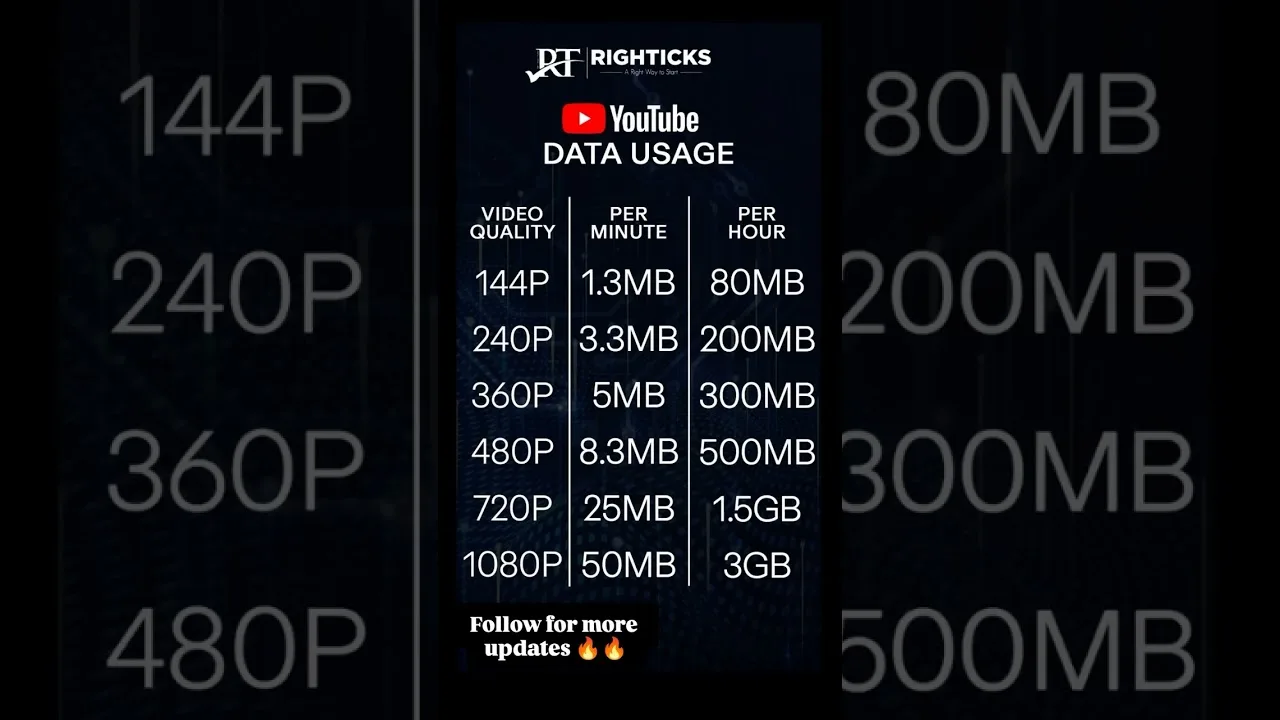
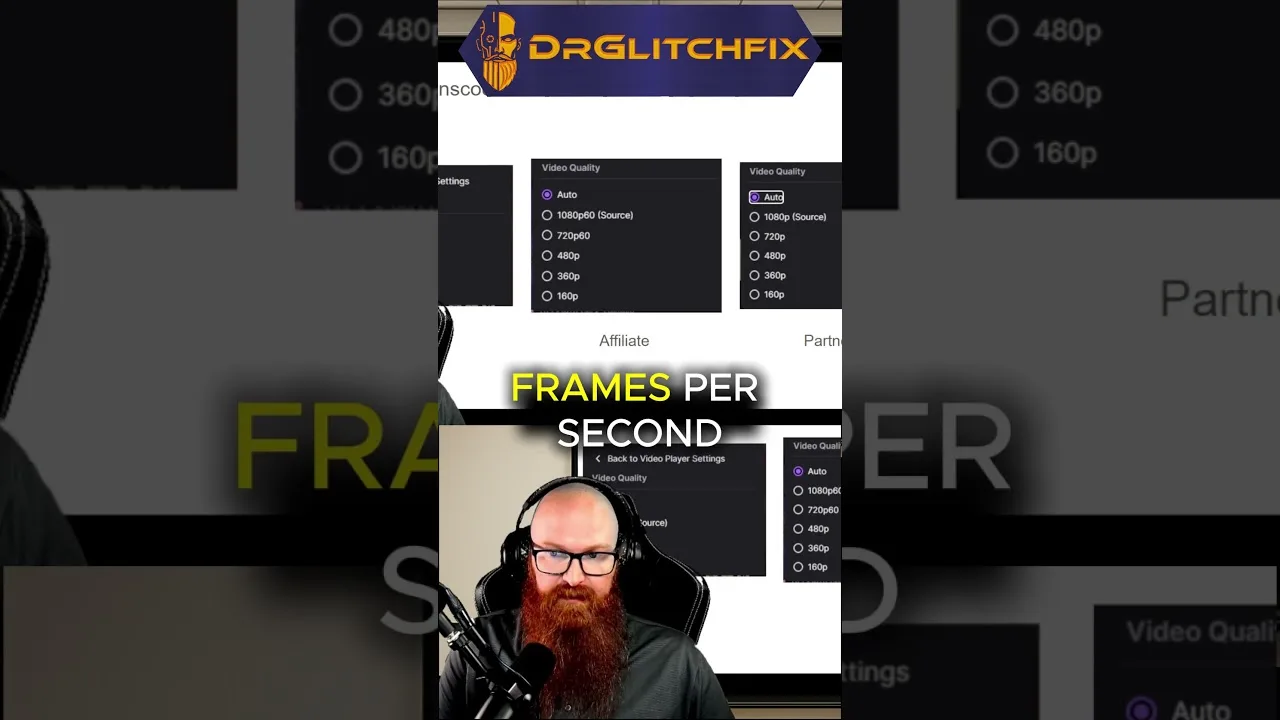
Quality is the master setting. Match it to your connection rather than your hopes: a stable standard-quality stream is a better evening than a top-quality one that stalls every minute. Where an automatic option exists, it adapts as your network fluctuates and prevents most stalls on ordinary Wi-Fi.
The exception is a fixed television setup on a strong connection, where a manual high setting avoids visible quality shifts mid-film. The data cost of each choice is laid out in our data usage guide.
Decoding and Player Behaviour
If the player offers hardware and software decoding, hardware is the right default for nearly every modern phone: the dedicated video chip does the work efficiently, the phone stays cooler, and the battery lasts through long sessions.
Software decoding is a diagnostic, not a home — try it only when a particular stream shows a broken picture with sound continuing. Unusual heat during streaming is the everyday clue that decoding deserves a look, because software decoding drives the main processor hard.
Data and Background Options
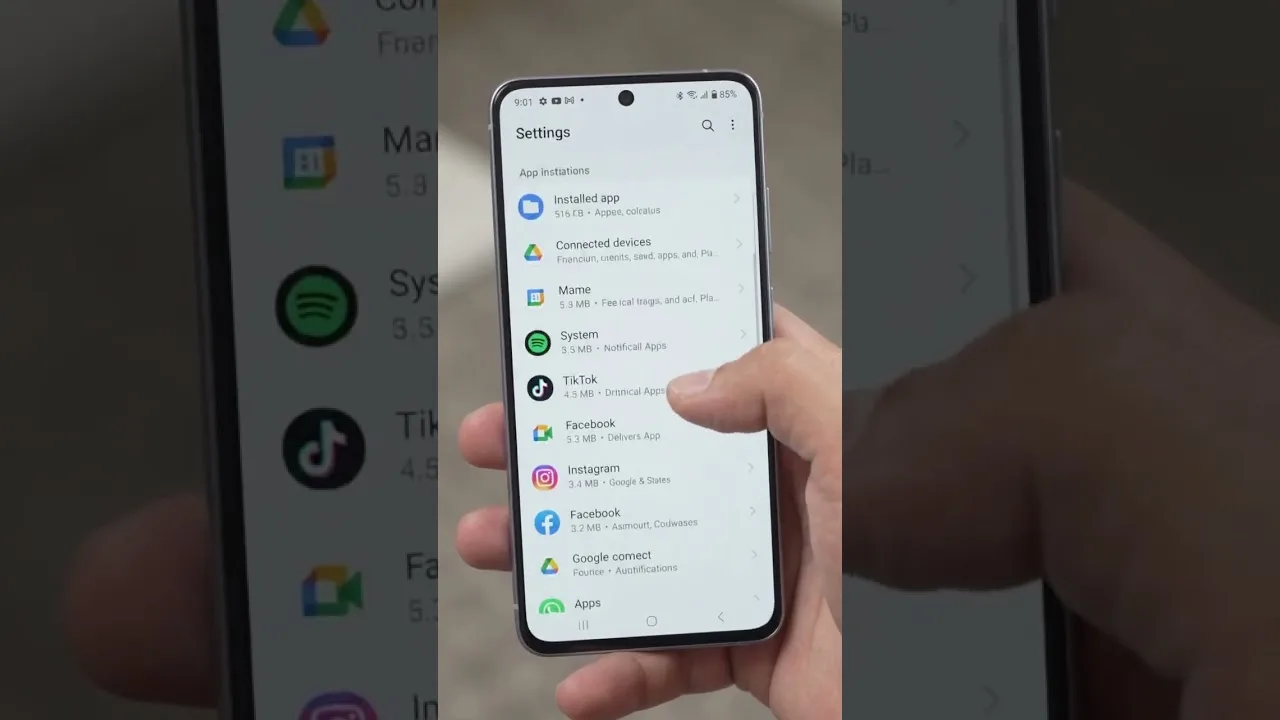
Audit the whole phone's background behaviour, not just this app: automatic cloud uploads, app updates, and large downloads scheduled for the evening compete directly with your viewing. Set big jobs to Wi-Fi only and, where possible, to overnight hours.
If you watch on mobile data at all, enable the data-conscious options and keep quality modest. Settings that cost nothing on home Wi-Fi matter enormously on a capped plan, and the two situations deserve different configurations.
Settings for Bigger Screens
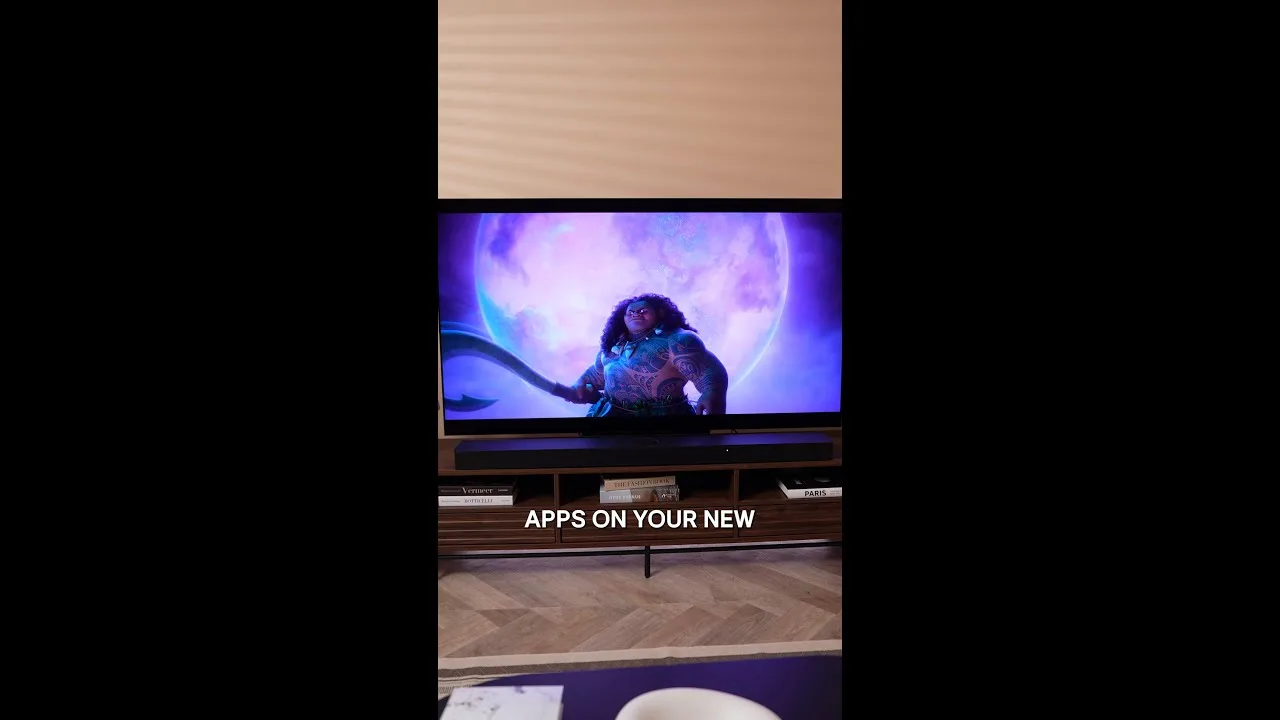
On a television, raise quality a level and check the TV's own picture processing: motion smoothing makes films look unnaturally fluid, and when streamed movies resemble soap operas, the TV's motion setting — not the app — is the cause. Switching it off restores the intended look.
Sound deserves a pass as well: a dialogue or night mode on the TV can make speech clearer at low volume. These are one-time adjustments that then serve every app on the television.
Final Thoughts
Good settings are personal: right beside the router is wrong two rooms away on a budget phone. Tune quality to your connection, leave decoding on hardware, silence the background competition — then stop adjusting and enjoy the result.